

نرم افزار اندروید پروگرام BAOFENG UV 32
خرید نرم افزار اندروید پروگرام BAOFENG UV 32
خرید و دانلود نرم افزار اندروید بائوفنگ UV 32 - لطفا توضیحات مطالعه شود

نماد الکترونیکی
نشان اعتماد (اینماد)

درگاه زرین پال
پرداخت امن و راحت

تحویل اکسپرس
ارسال سریع سفارشات

گواهی SSL
پروتکل امن ssl

تضمین اصالت کالا
همراه با گارانتی ماهان تل
محصولات مرتبط


توضیحات مهم
خریدار گرامی پس از پرداخت آنلاین لینک دانلود فایل ( به صورت RAR ) فعال میگردد
توجه نمایید که این نرم افزار اندروید بوده و توسط شرکت اصلی بائوفنگ طراحی گردیده
و ممکن است در برخی مدل های گوشی موبایل ای نسخه های اندروید( مانند برخی از نرم افزار های دیگر اندروید) نصب نگردد یا به درستی عمل نکند.
کاربر جهت استفاده از این برنامه بایستی اصول پروگرام کردن را کاملا بلد باشد -( هیچ آموزشی بابت کارکردن با این نرم افزار ارائه نمیگردد )
---------------------------------------------------------------------------------------
Easy Wireless Bluetooth Connectivity and User-Friendly Interface
Programming your application for Baofeng UV-32 walkie talkie with a mobile app via Bluetooth is a straightforward and convenient process that allows you to easily configure your radio's settings without the need for a computer. This method is particularly useful for users who need to frequently adjust their radio settings for different activities such as camping, hiking, or other outdoor adventures where carrying a laptop is not practical. The Baofeng UV-32 is known for its rugged design, long range, and crystal-clear audio, making it a great choice for reliable communication in various conditions. This step-by-step guide will walk you through the process, ensuring you can set up your radio quickly and efficiently.
Step-by-Step Guide to Bluetooth Programming Baofeng UV-32 Radios via Mobile app
Downloading and Installing the App
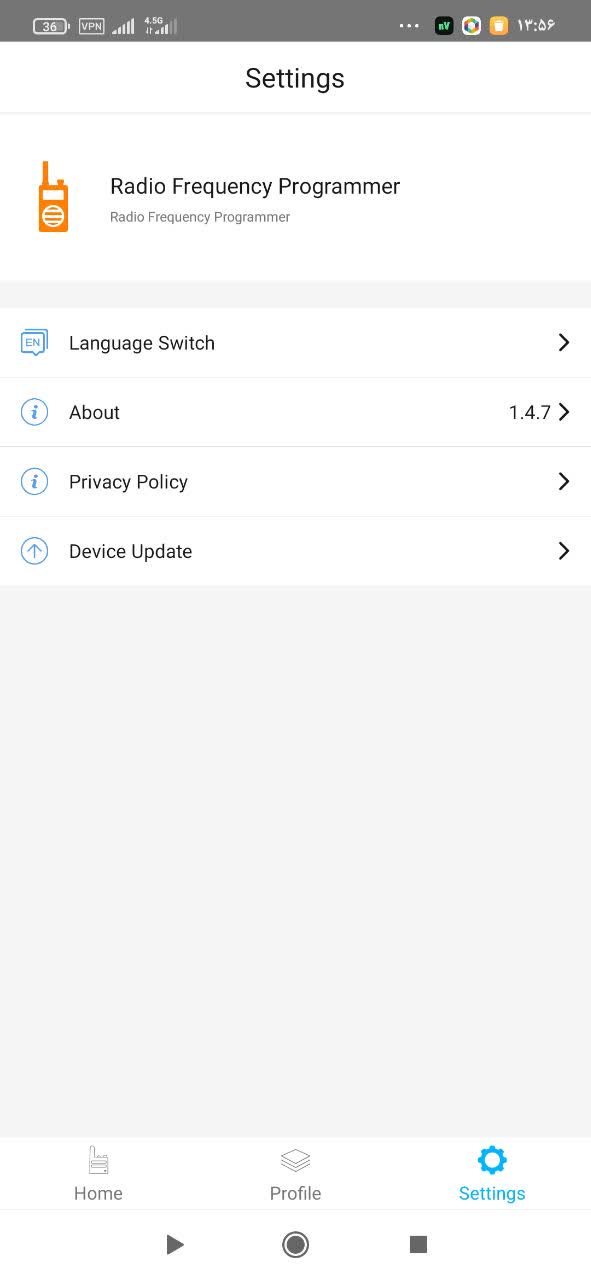
download the "Radio Frequency Programmer" app. Ensure your smartphone's Bluetooth is enabled for connectivity to proceed with the setup.
Additional Notes
Dark Mode Consideration: If your phone is in dark mode, the app may not display all text clearly; switch to light mode for better visibility.
App Functionality: Be aware of reported issues, such as the app not saving settings correctly or crashing. After programming, verify all settings to ensure accuracy.
Setting Up Mobile App via Wireless Bluetooth and Connect to Baofeng UV-32
Step 1: Enable Bluetooth on the Baofeng UV-32
Press the [Menu/OK] button to access the menu.
Use the arrow keys to navigate to the Bluetooth option.
Press the [Menu/OK] button to select Bluetooth.
Choose 'On' and press [Menu/OK] to enable Bluetooth.
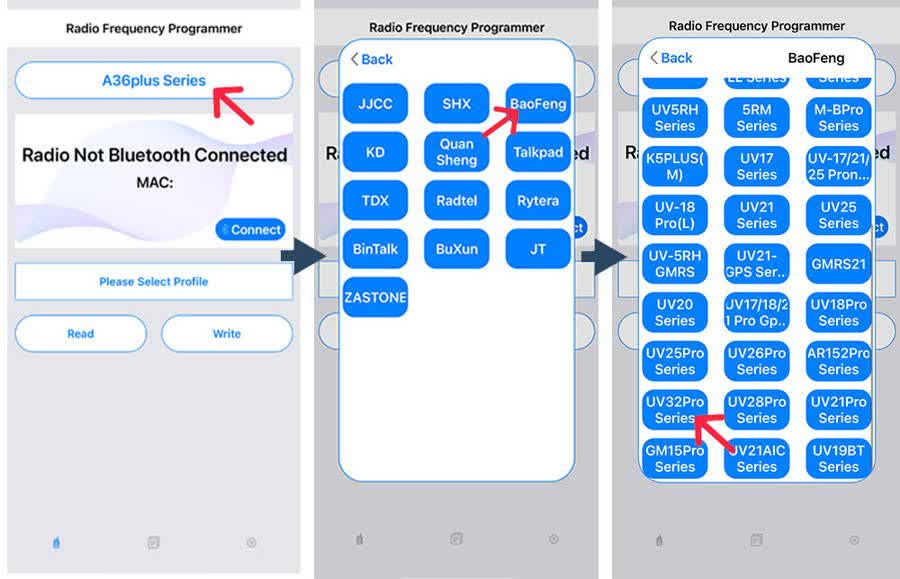
Step 2: Open the "Radio Frequency Programmer" app on your mobile device.
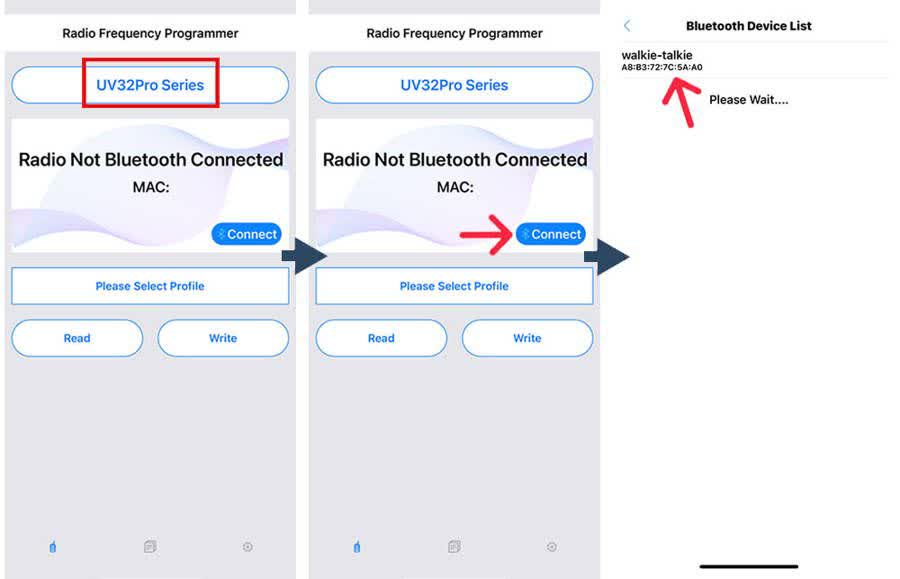
Select "Baofeng" as the brand and "UV32Pro Series" as the model.
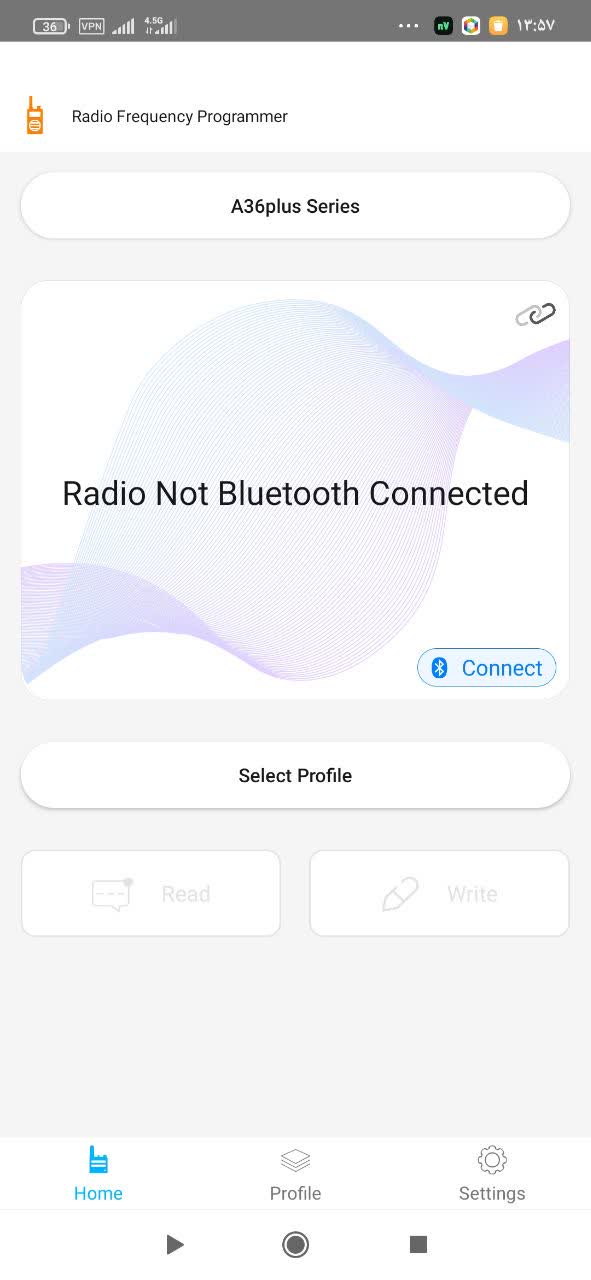
Tap the "Connect" button to search for your UV-32 device.
Select your UV-32 from the Bluetooth Device List.
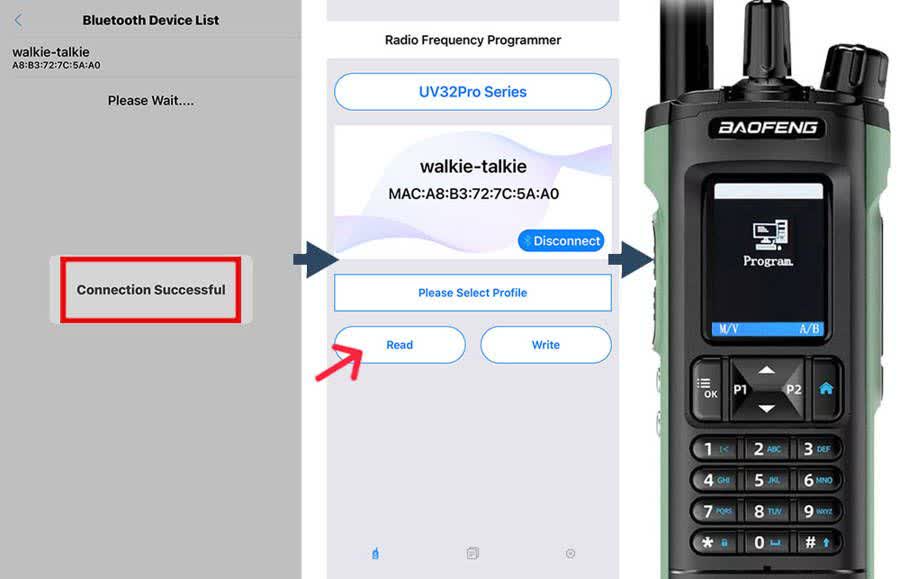
The app will display "Connection Successful" upon successful connection.
Step 3: Reading and Writing Information Between UV-32 and Mobile Device
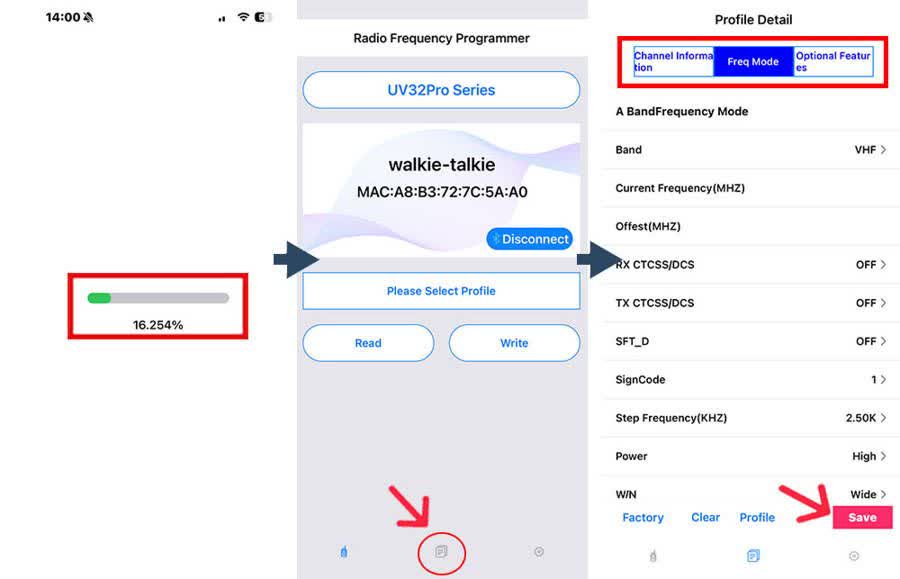
Tap the "Read" button in the mobile app to retrieve information from the UV-32. If successful, the UV-32 display will show a "Program" icon, and the app will display a percentage progress indicator.
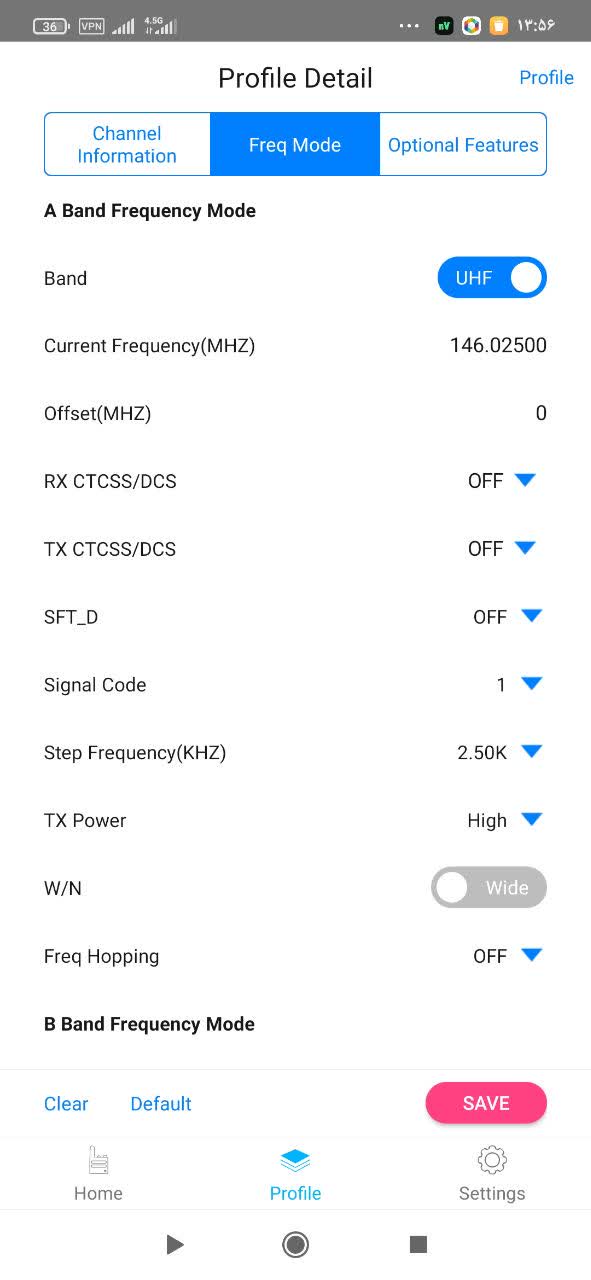
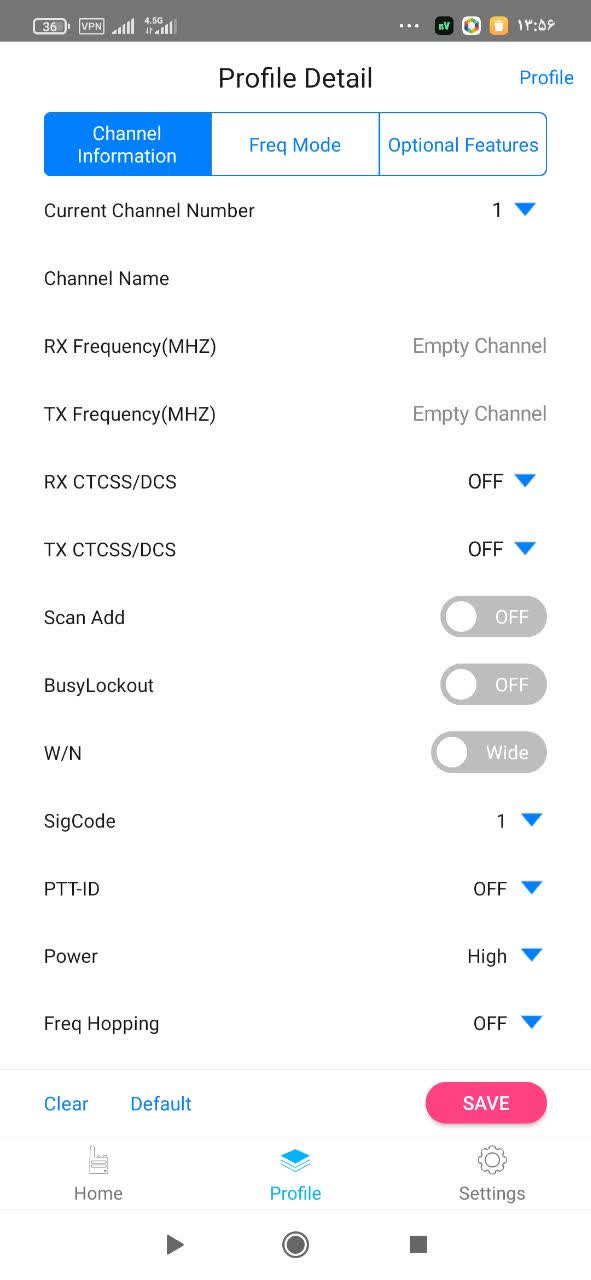
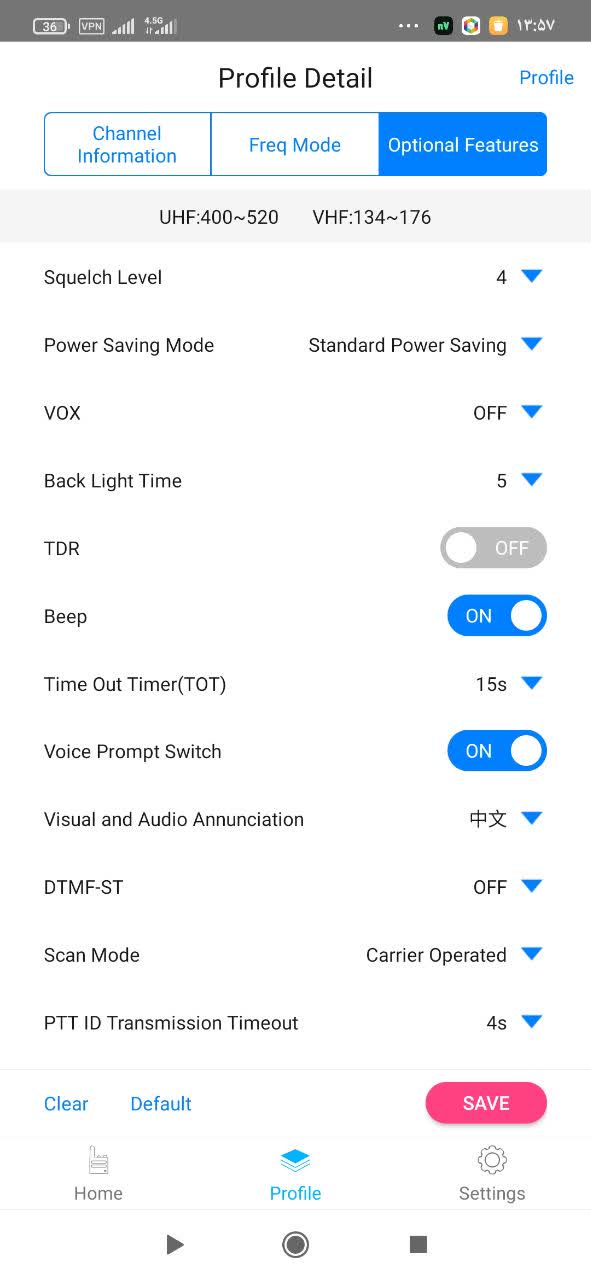
Navigate to the "Profile Details" page, which includes Channel Information, Frequency Mode, and Optional Features. Edit these settings as needed (e.g., frequencies, channels, RX/TX CTCSS/DCS, zones).
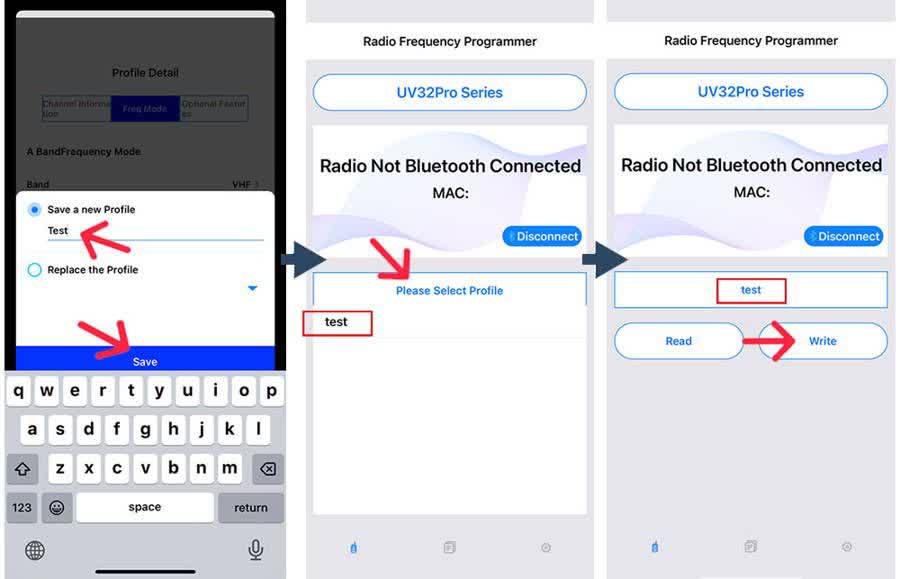
After making edits, click the "Save" button. Enter a new name to create a new profile or choose to replace an existing profile.
Select your desired profile name from the "Please Select Profile" list.
Finally, tap the "Write" button to transfer the updated information from the mobile app to the UV-32 device.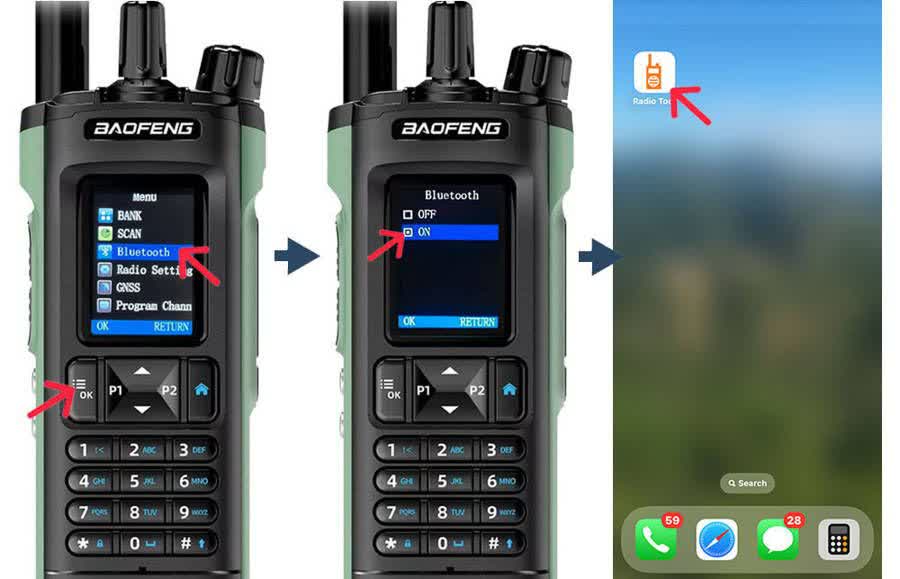
Additional Tips:Ensure your smartphone and radio are within close range (typically within 10 meters) for a stable wireless bluetooth connection.
If you encounter any issues, make sure both your smartphone and the radio have the latest firmware or app updates.
The Baofeng UV-32's wireless programming feature enhances its functionality, allowing you to quickly adjust settings for specific needs, such as group communication or emergency setups.
For optimal performance, use the app in a location with minimal interference, ensuring crystal-clear radio communication.
In addition, you can use a USB programming cable to connect the radio to a computer. This method requires compatible software , allowing for detailed configuration and channel management.
.
دیدگاه خود را بنویسید